
Can’t see vehicles? Causes and solutions for dispatchers
To ensure that you can see vehicles permanently, a few conditions must be met:
Check if the carrier is connected
First, the carrier must be connected with you.
Go to the “Trusted Partner” section
Check under “Connected Companies” (1) whether the carrier is connected (2).
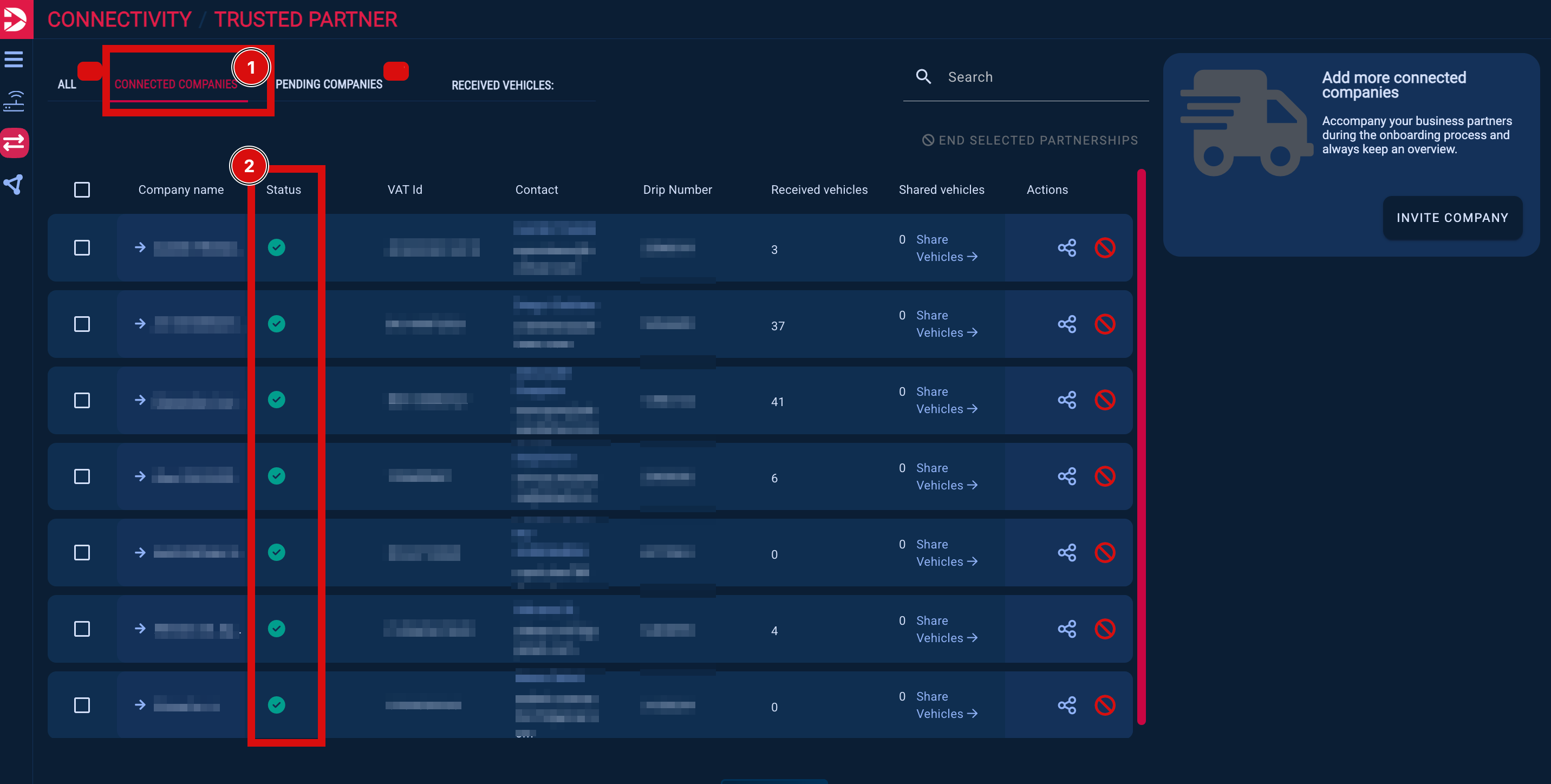
If not: Invite the carrier to establish the connection (see instructions: How to invite Companies to DRIP )
The carrier below already has a DRIP account but has not yet accepted your invitation and is therefore not connected to you.
Check Contact to see who set up the carrier’s DRIP account.
If it’s not your contact person, they might not have access yet and may need to ask for a user account.
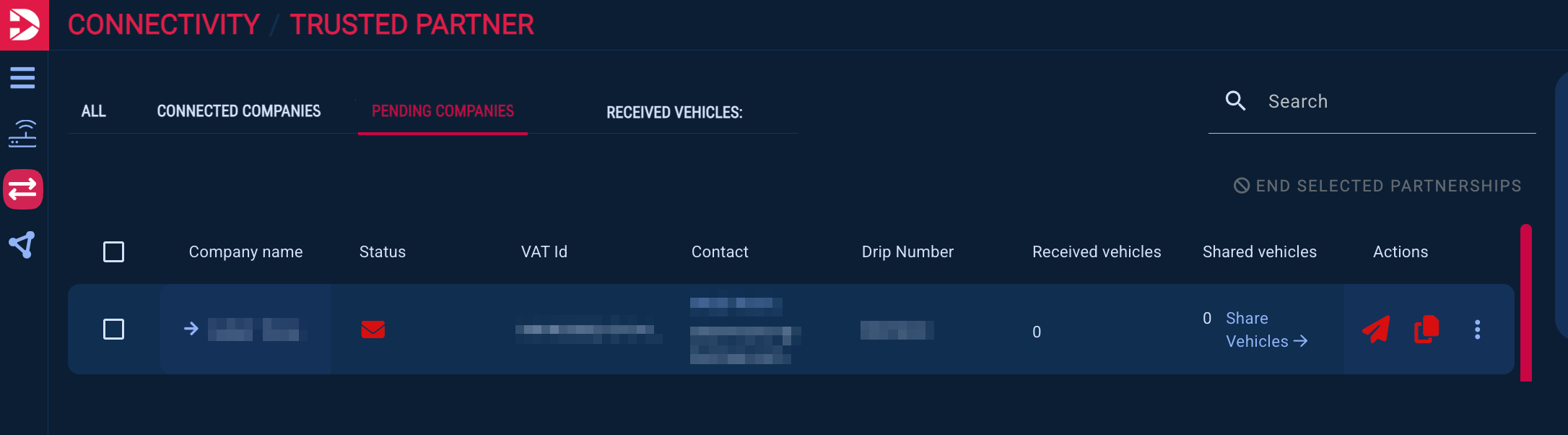
The carrier below has not yet registered their company (not with the email address shown under Contact).

The carrier below has registered their company and accepted your invitation, but has not yet shared any vehicles with your company.
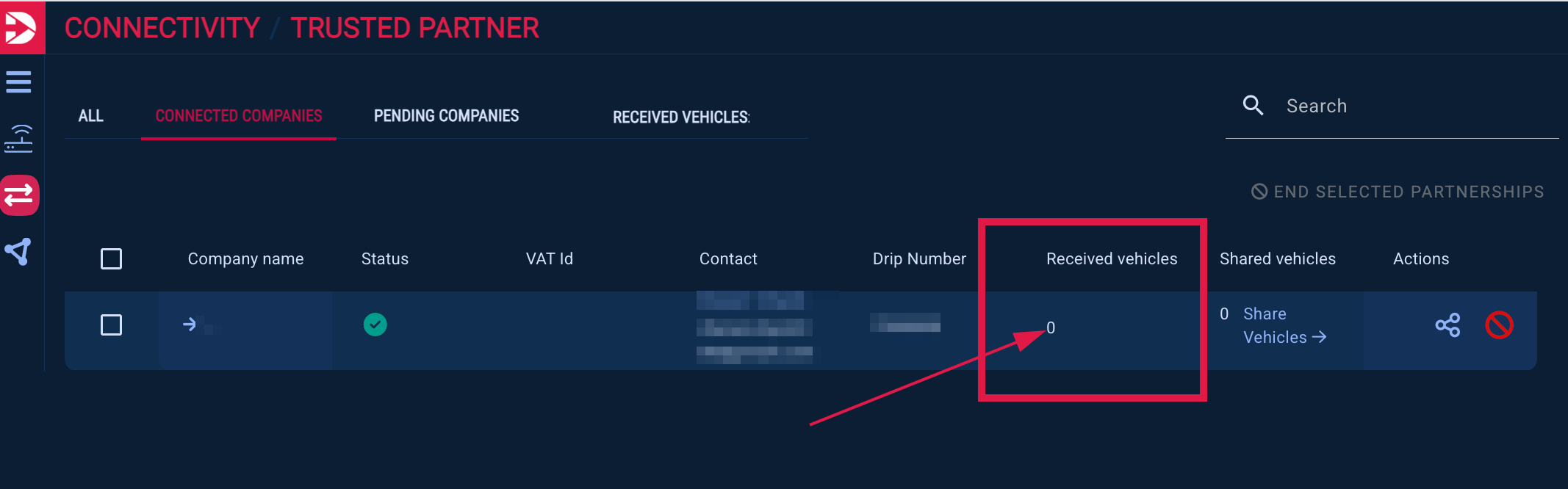
A correctly connected carrier who shares vehicles looks like this:

GPS system must be connected
The carrier must have successfully connected a GPS system to their DRIP account.
Important: This GPS system must transmit the vehicle data of the vehicles you want to see
Once this is done, order-based tracking is already possible (see What tracking options are available? (Order-Based Tracking) )
Vehicles must be actively shared
To see vehicles permanently, the carrier must also share them with you.
Why is this necessary?
Some GPS systems automatically transmit the entire fleet. However, the carrier may choose to share only specific vehicles with you.
Check shared vehicles
You can check at any time which vehicles have been shared with you:
Go to the “Trusted Partner” page and click on the “company name” in the section of the company you are looking for.

There you can see:
which vehicles are shared with your company (1)
whether they are active (2)
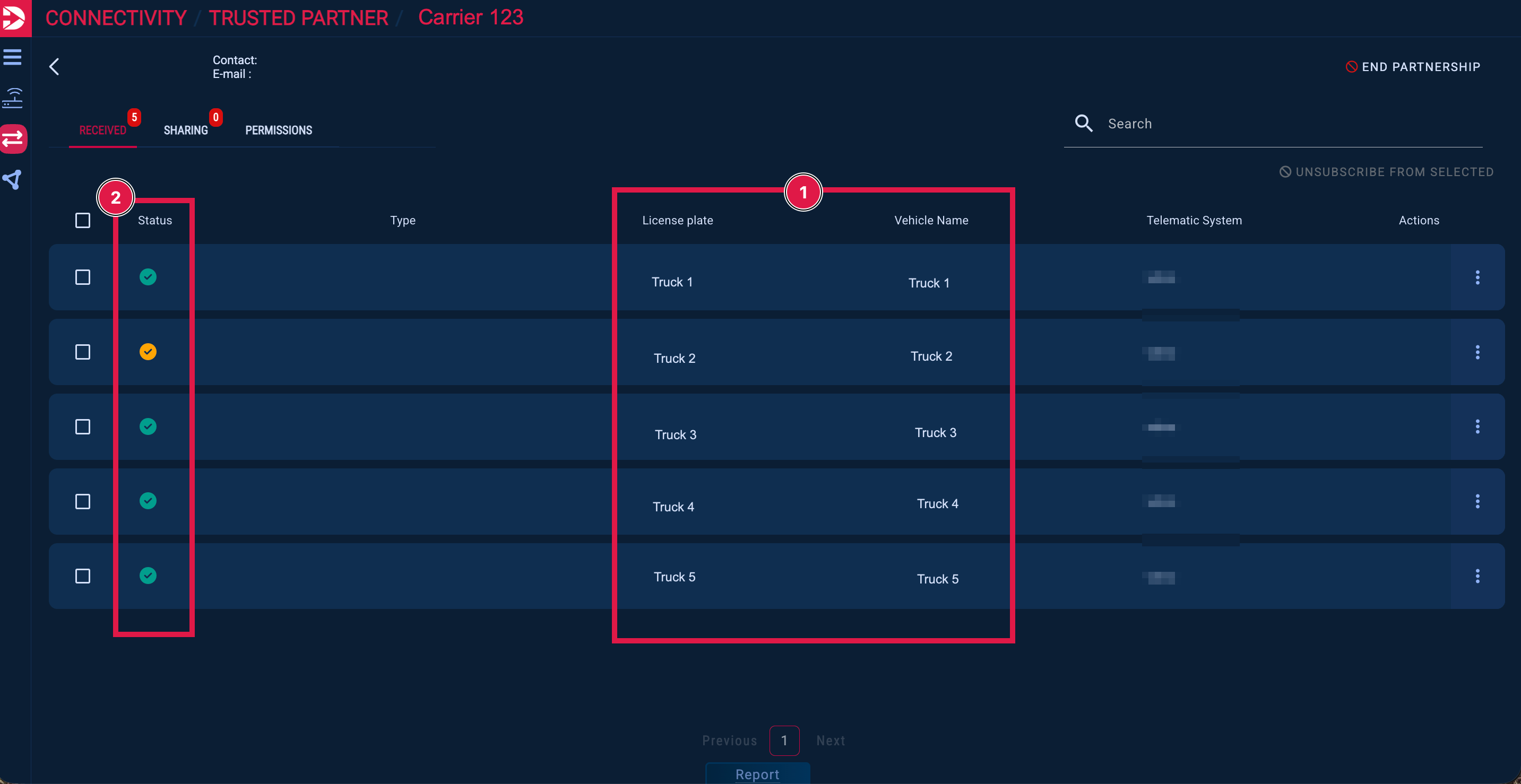
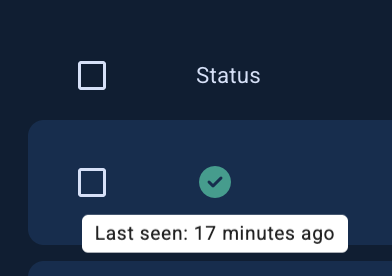
If you hover over the status icon, you can see when the last position was transmitted.

Here you can also see if a vehicle is no longer transmitting or currently not sending data. If no position has been received for more than 1 hour, the icon turns yellow.
Please note: with some GPS systems, no data is transmitted when the driver is on a break and the ignition is turned off.
Where are the vehicles visible?
All vehicles that are shown as active and shared will also appear in:
the vehicle list
the realtime monitor
If vehicles are still not visible in the vehicle list/ realtime monitor
please check:
Is a filter active?
For example, if there is any text left in the search field (1), clear it.
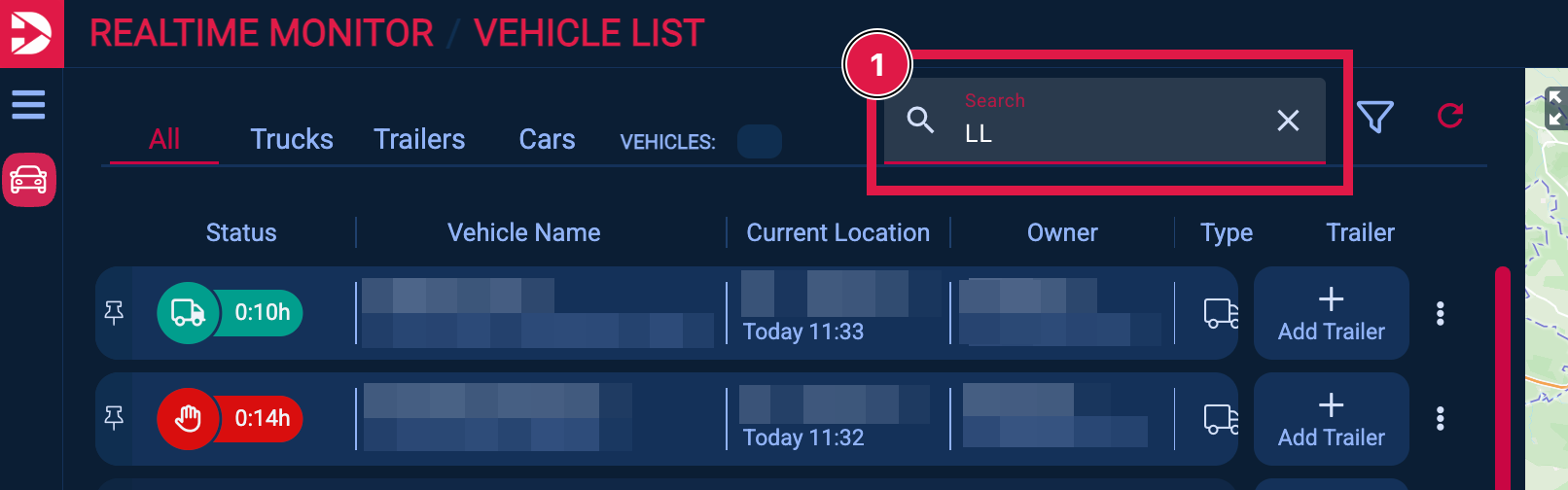
If the “Reset Filters” button is visible, a group or company filter is applied (2). Please click the button to remove it.

Is the vehicle in the same group as you?
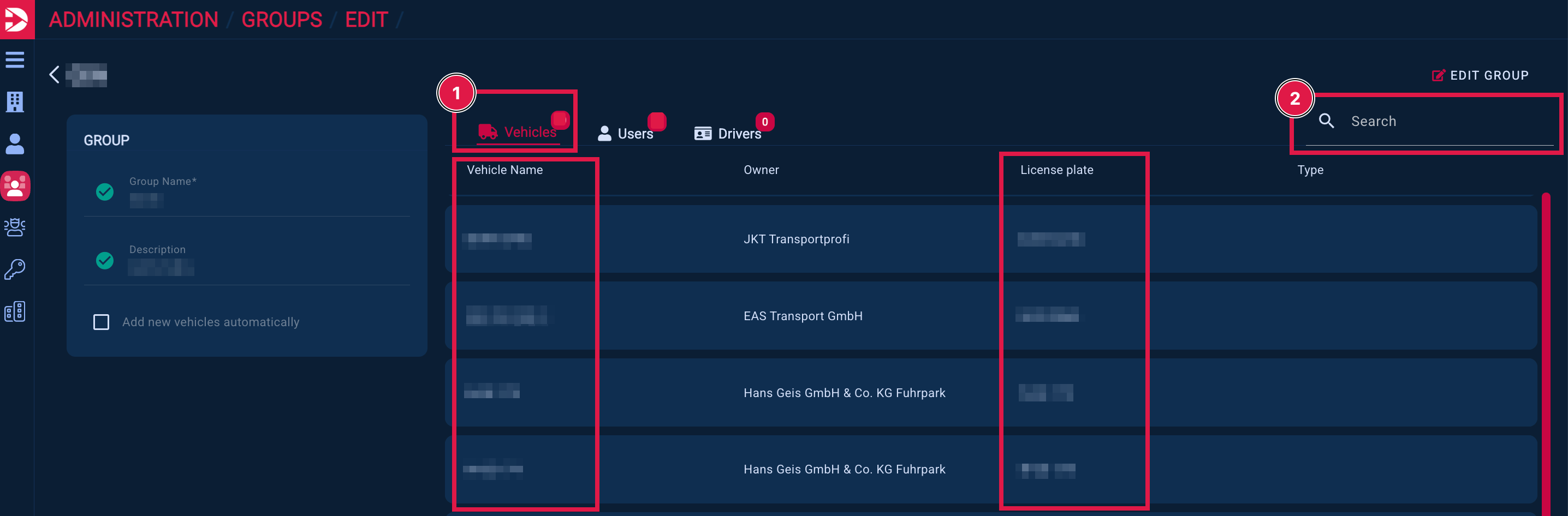
Navigate to the Groups section (1) in the administration area and click on the desired group name (2).
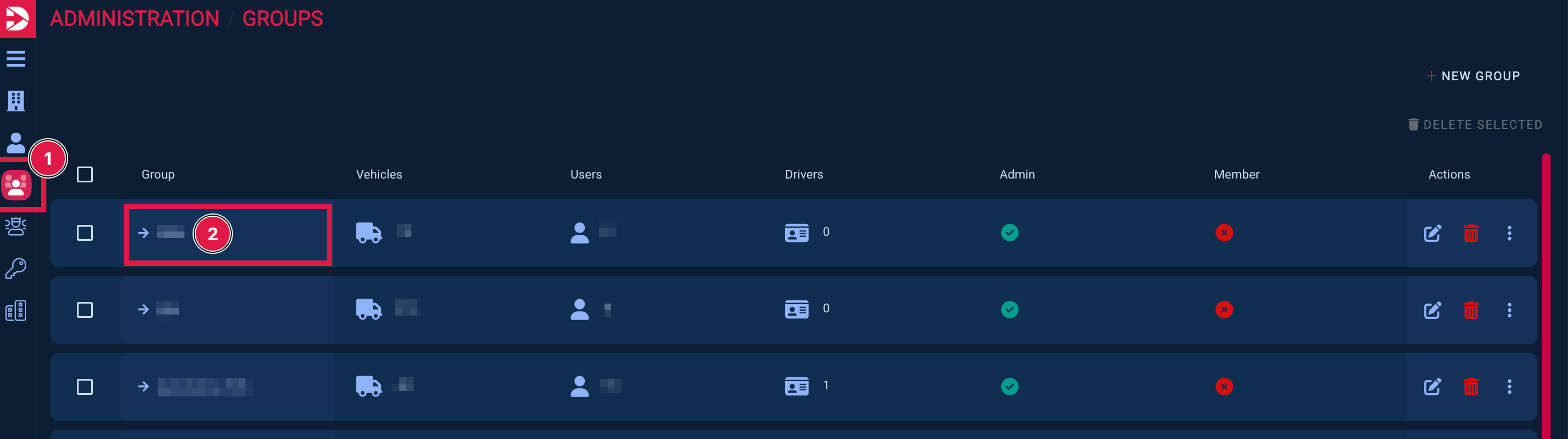
Then click on “Users” to verify that you are part of the group, and search for your email address or your name.
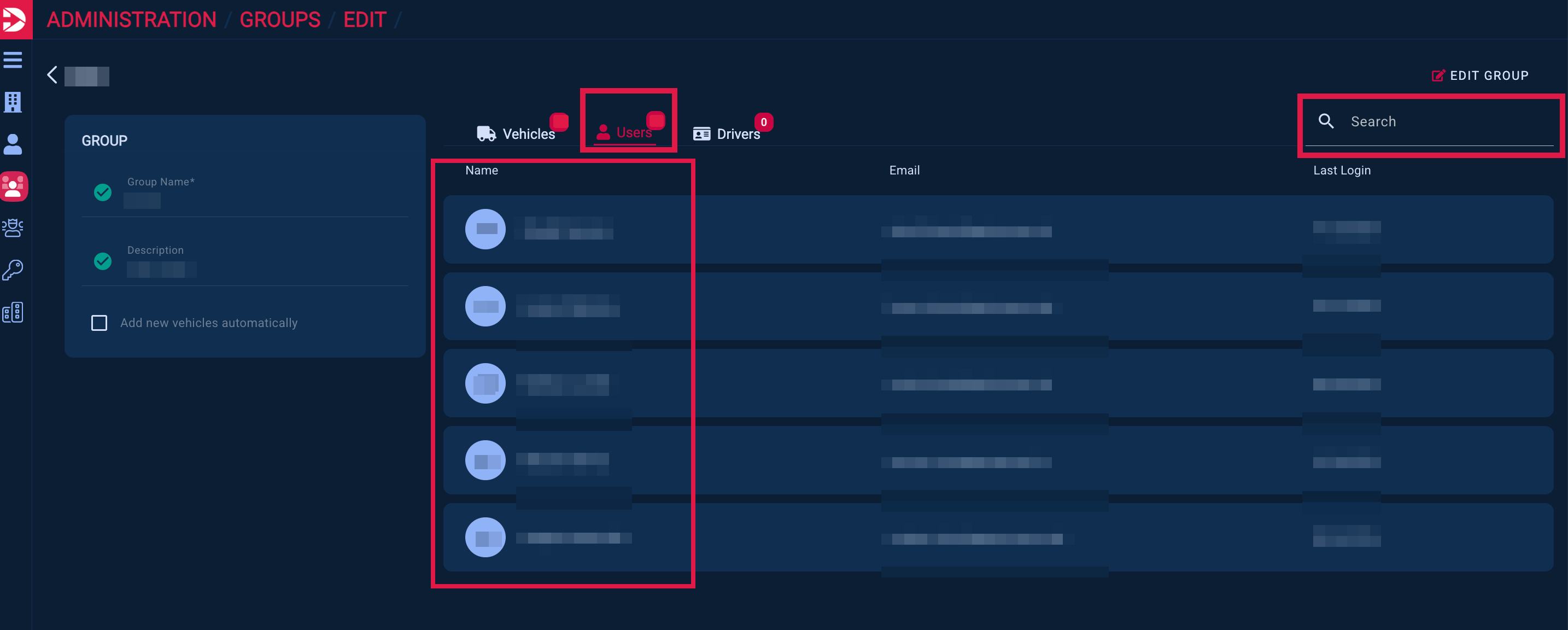
If you find yourself listed, click on “Vehicles” (1) and search (2) for the vehicle using the license plate or vehicle name.
If either the vehicle or you need to be added to the group, please refer to the instructions here: How to edit groups
Contact support
If everything is set up correctly and you still cannot see the vehicle:
👉 Contact our support team: (support@drip-log.com)
We will assist you as quickly as possible.