
Change License Plate / Vehicle Name
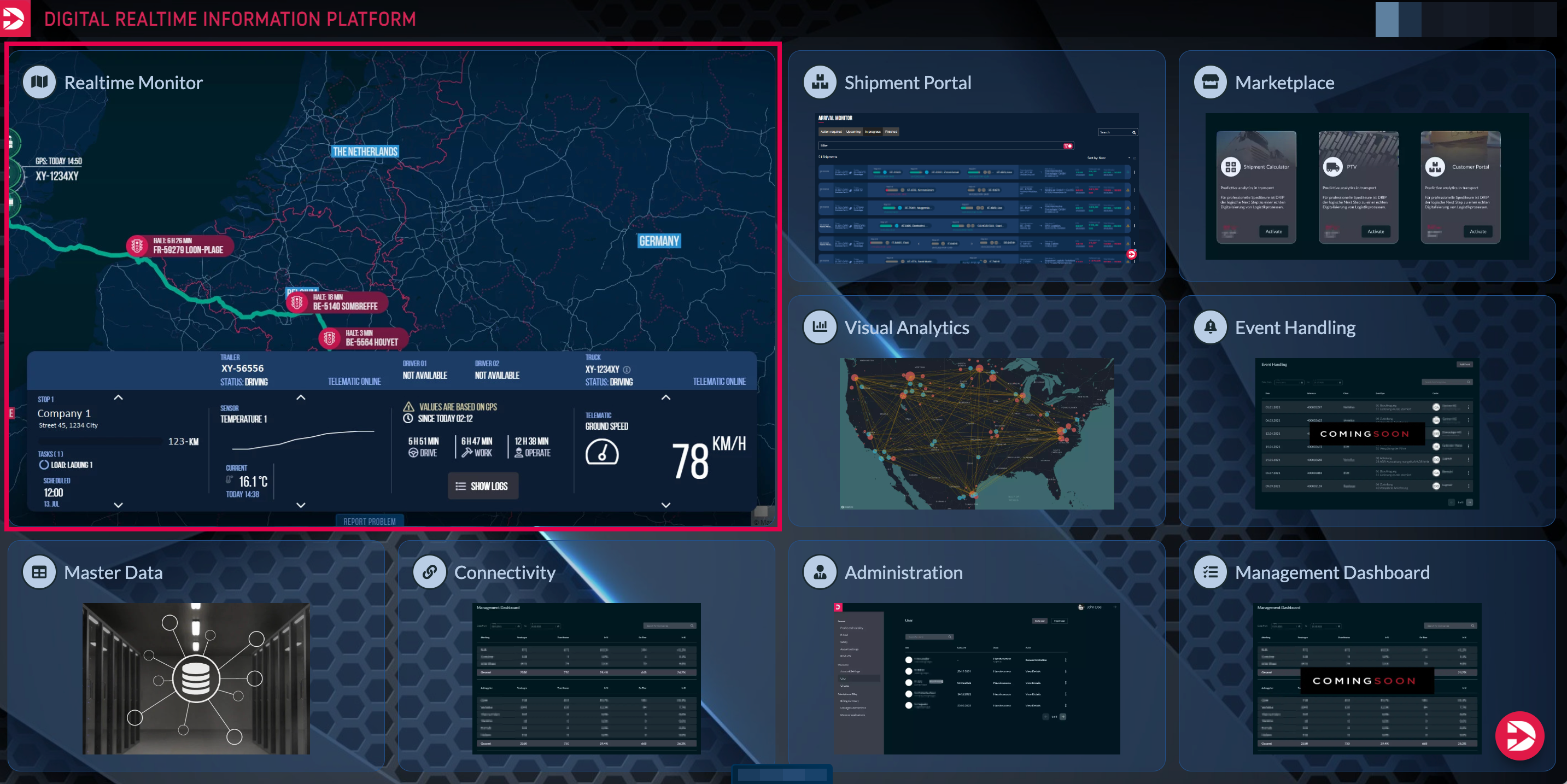
First, navigate to the Vehicle List.
To do this, click on the Real-Time Monitor area on the homepage.
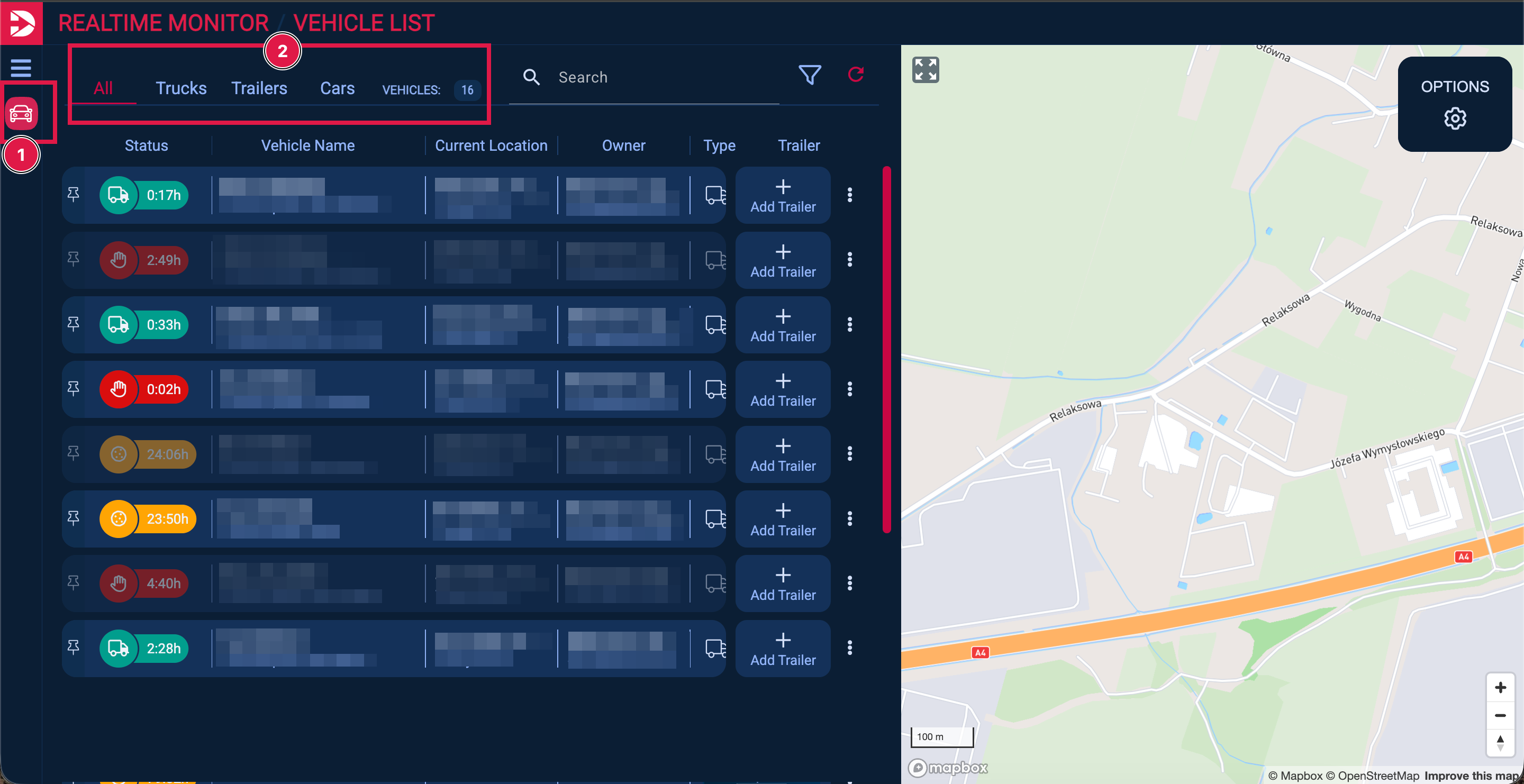
Next, click on the top car - icon in the sidebar for the device list. (1)
As a result, the device list opens with a map view in the overview, displaying all vehicles along with their current positions. Vehicles will only be shown if you have connected a telematic system or if vehicles have been shared with you.
In the upper section of this area, you have the option to filter the vehicles in the list by type. (2)
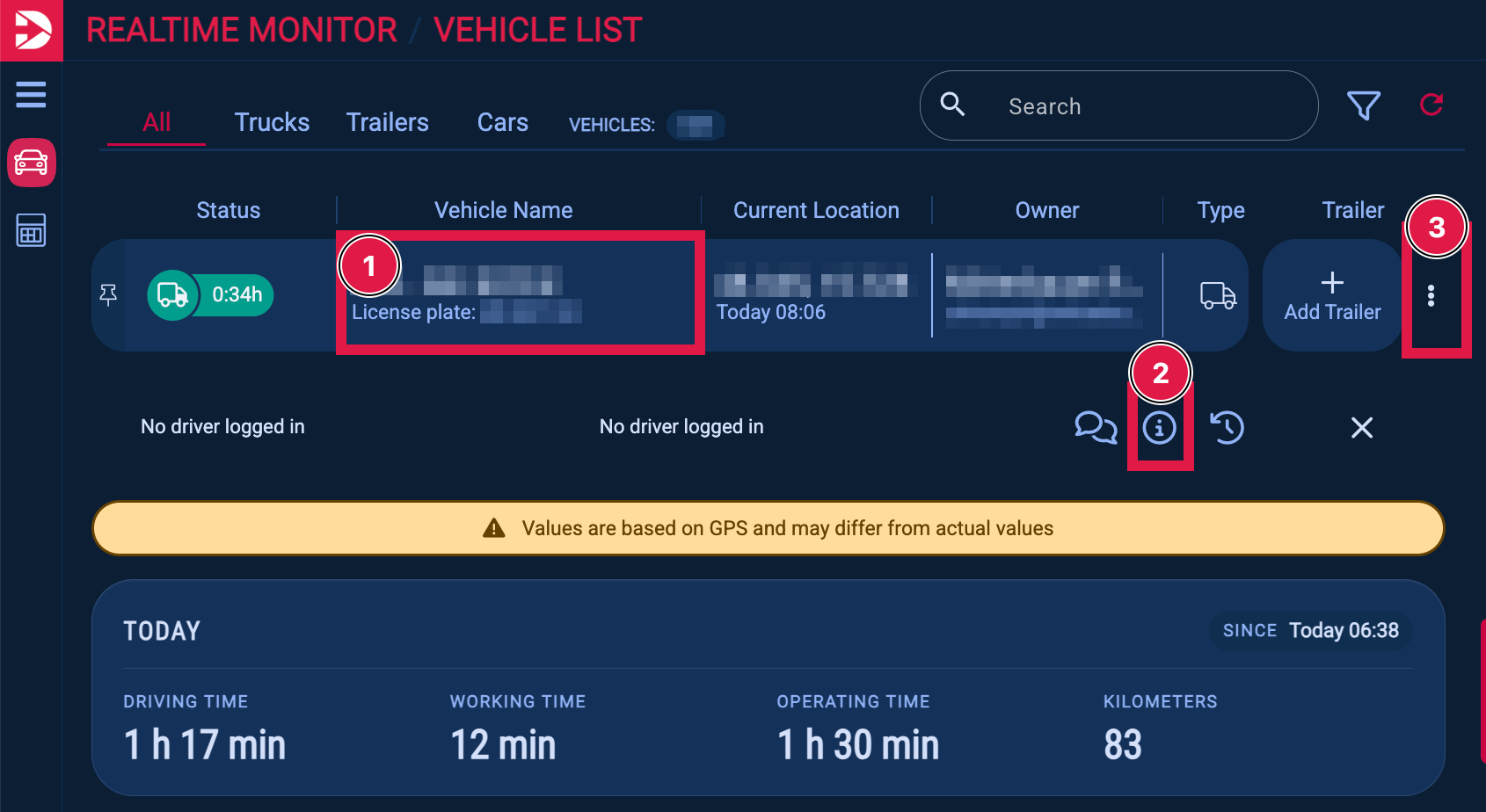
Then, click either the vehicle name (1) and next the Info button (2) to open the vehicle details, or click on the three-dot button (3).
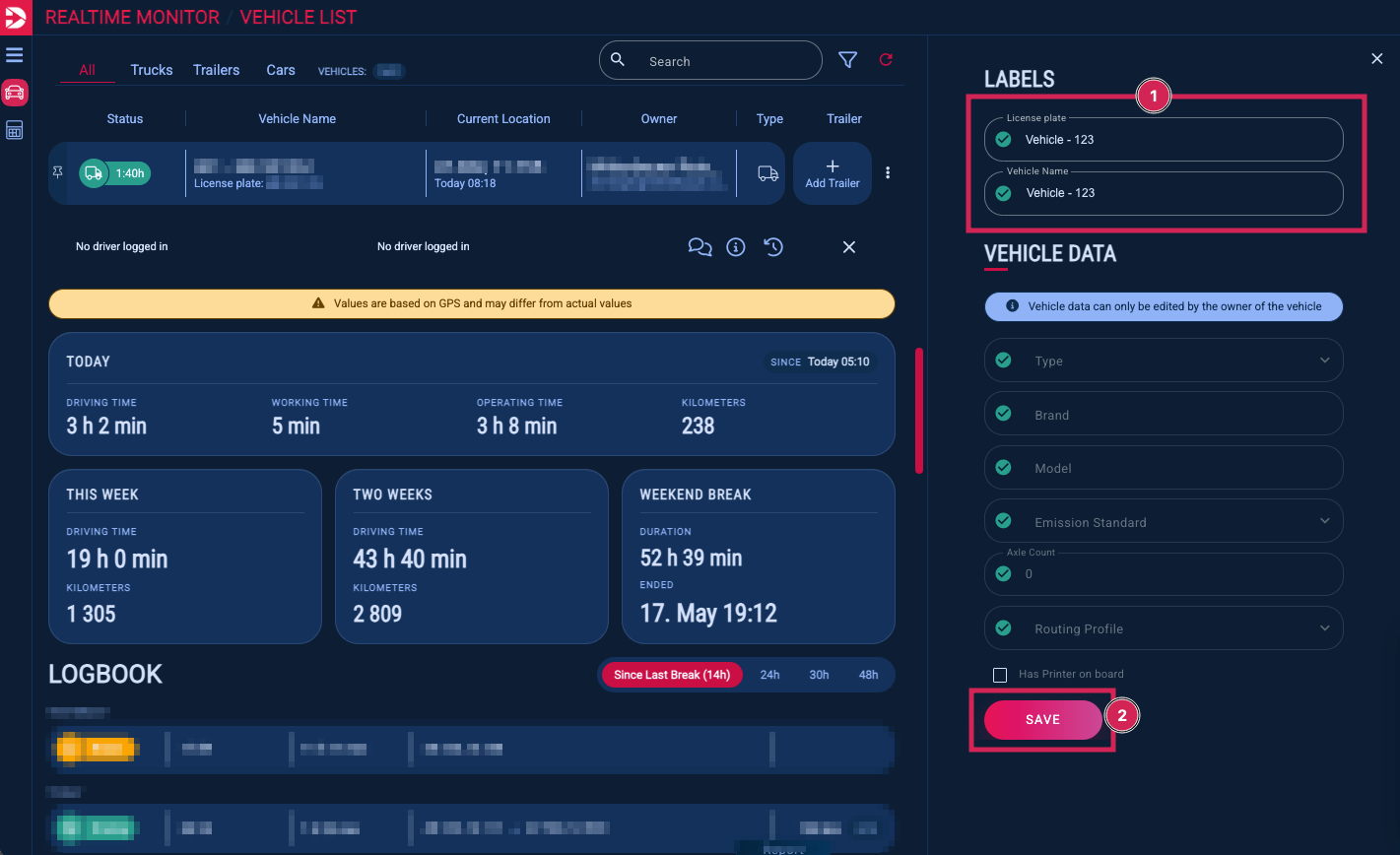
The vehicle details will open on the right side of the vehicle overview.
Here, you can edit the license plate and/or the vehicle name, then click Save to apply the changes.
If you change the license plate or name of a vehicle owned by another company, the change will only be visible in your account.
For your own vehicles, the changes will also be visible to companies the vehicle is shared with.
Changing the vehicle name can help improve the visibility of the vehicles overview on the map.
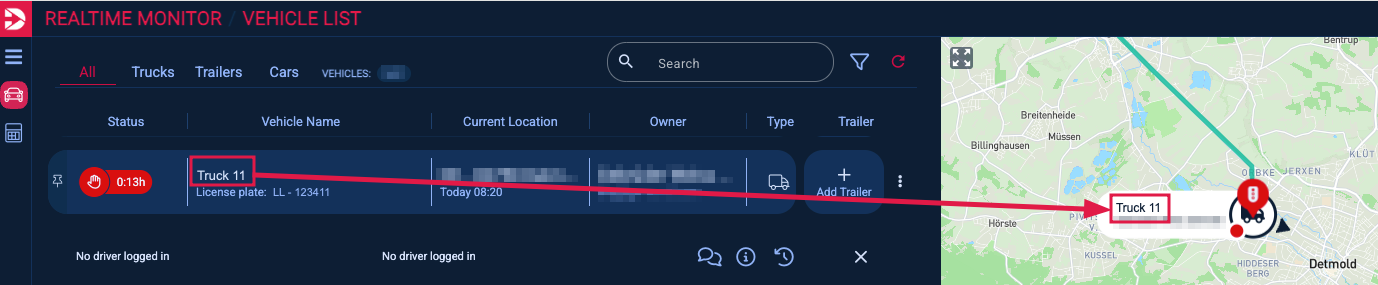
Changing the vehicle name has no impact on shipment tracking, as the license plate is used for tracking.
Important: If you change the license plate of a vehicle owned by another company, you must provide the shipment with exactly the same license plate to us. Otherwise, the vehicle cannot be found.
For example: If the license plate of a vehicle owned by another company is changed from “LL 12345” to “LL12345”, the shipment must also be submitted with “LL12345” (without spaces). Otherwise, the vehicle cannot be found.
For your own vehicles, it does not matter whether the license plate is submitted with or without spaces or hyphens.